-->
Showing posts with label Programming နည္းပညာမ်ား. Show all posts

Microsoft Visual Studio 2008 Professional Edition +Serial Key

Microsoft Visual Studio 2008 Professional Edition +Serial Key

No comments
By Pyae Phyo


ကို HARRIS က Micrsoft Visual Studio 2008 Professional Edition ကိုေတာင္းဆိုလို႕ တင္ေပးလိုက္ပါတယ္။ Installer ကေတာ့ direct လင့္ပါ။ 3.3 GB ရွိလို႕ပါ။ Serial နဲ႕ Installer ကေတာ့ ေအာက္ပါအတုိင္းေဒါင္းလုတ္ဆြဲလိုက္ပါ။ အဆင္ေျပပါေစ။


Visual Studio 2008 Professional Edition is a comprehensive set of tools that accelerates the process of turning the
developer’s vision into reality. Visual Studio 2008 Professional Edition was engineered to support development projects that target the Web (including ASP.NET AJAX), Windows Vista, Windows Server 2008, The 2007 Microsoft Office system, SQL Server 2008, and Windows Mobile devices. The number of platforms that developers must target to meet business needs is increasing rapidly. Visual Studio 2008 Professional Edition provides the integrated toolset for addressing all of these needs by providing a superset of the functionality available in Visual Studio 2008 Standard Edition.

Today’s developers face the challenge of targeting a broad range of platforms and crafting applications that quickly deliver value to the business. Integrated designers and language features in Visual Studio allow developers to build the connected applications demanded by today’s businesses while taking advantage of the .NET Framework 3.5 to reduce development time.


Deliver high-performance applications

Connect to the data you need, regardless of its location, and build data driven applications using Language Integrated Query (LINQ).

Build great client applications

Develop compelling solutions that leverage the user experience and capabilities of the 2007 Microsoft Office system and Windows Vista®.

Build powerful Web applications

Build rich, interactive applications using the ASP.NET AJAX interactive Web interfaces


Requirements


Requirements vary for different combinations of components within Visual Studio 2008 Professional Editions. To install Visual Studio 2008 Professional Edition, you need:

Computer with a 1.6 GHz or faster processor
Visual Studio 2008 can be installed on the following operating systems:
Windows Vista® (x86 & x64) - all editions except Starter Edition
Windows® XP (x86 & x64) with Service Pack 2 or later - all editions except Starter Edition
Windows Server® 2003 (x86 & x64) with Service Pack 1 or later (all editions)
Windows Server 2003 R2 (x86 and x64) or later (all editions)
384 MB of RAM or more (768 MB of RAM or more for Windows Vista)
2.2 GB of available hard-disk space
5400 RPM hard drive
1024 x 768 or higher-resolution display
DVD-ROM Drive


Installer (.iso file)


Download => Link 1

Serial key (ကီး)

Download => Link 1 / Link 2 / Link 3
Download လုပ္ရန္အတြက္ 5 second ေစာင့္ပါ၊ ၿပီးရင္ SKIP AD ကုိႏွိပ္ၿပီး ေဒါင္းပါ။ Download Link ေတြ မရရင္ Comment ေပးၿပီး ေျပာခဲ့ပါ၊ ျပန္ျပင္ေပးပါ့မယ္။ အဆင္ေျပတယ္ဆုိရင္ ျပန္ခါနီး ေၾကာ္ျငာေလးမ်ားကုိ တစ္ခ်က္မွ် ကလစ္ေပးသြားၾကပါ။ :D

ေဆာ့၀္လ္အေသးစားေရးမည့္သူမ်ားအတြက္

ေဆာ့၀္လ္အေသးစားေရးမည့္သူမ်ားအတြက္

No comments
By Pyae Phyo


ကြ်န္ေတာ့္ေက်ာင္းက သူငယ္ခ်င္းတစ္ေယာက္ေတာင္းဆိုထားလို႕ တင္ေပးထားပါတယ္။ သူက Free ေဆာ့၀္လ္တစ္ခုျဖစ္ၿပီးေတာ့ အေျခခံေဆာ့၀္လ္နဲ႕ အလြယ္ေရးလို႕ရတဲ့ Microsoft ကထုတ္ထားတဲ့အထူးရွယ္ ေဆာ့၀္လ္တစ္ခုပါ။ ကြ်န္ေတာ္လည္း မသံုးတတ္ပါဘူး။ Program အေသးစားေလးေတြေရးရင္ သူနဲ႕အဆင္ေျပတယ္ဆိုပဲ။ ပိုသိခ်င္ရင္ ေအာက္ပါအတုိင္းဖတ္ၿပီး ေဒါင္းလုတ္ဆြဲလိုက္ပါ။


Programming is Fun, again!

Mirosoft Small Basic puts the "fun" back into computer programming. With a friendly development environment that is very easy to master, it eases both kids and adults into the world of pogramming.

Simple

Small Basic combines a friendly environment with a very simple language and a rich and engaging set of libraries to make your programs and games pop. In a matter of few lines of code, you will be well on your way to creating your very own game!
With a new and revolutionary IntelliSense®, Small Basic makes writing code a breeze.

Social

Share your programs with your friends; let them import your published programs and run them on their computer. Using the Silverlight player, you can even post your games on your blogs and websites for them to play your creations in the browser.

Gradual

Learn the programming concepts starting with the fundamentals and move your way up. Small Basic is based on .NET and what you learn here could be easily applied to other .NET programming languages like Visual Basic. And when you do graduate to Visual Basic, you can bring your existing programs with you using a built-in conversion utility.

Download => Link 1

Download လုပ္ရန္အတြက္ 5 second ေစာင့္ပါ၊ ၿပီးရင္ SKIP AD ကုိႏွိပ္ၿပီး ေဒါင္းပါ။ Download Link ေတြ မရရင္ Comment ေပးၿပီး ေျပာခဲ့ပါ၊ ျပန္ျပင္ေပးပါ့မယ္။

Programmer, Developer တုိင္းအသံုးျပဳတဲ့ Notepad ++

Programmer, Developer တုိင္းအသံုးျပဳတဲ့ Notepad ++

No comments
By Kaung Htet Htun

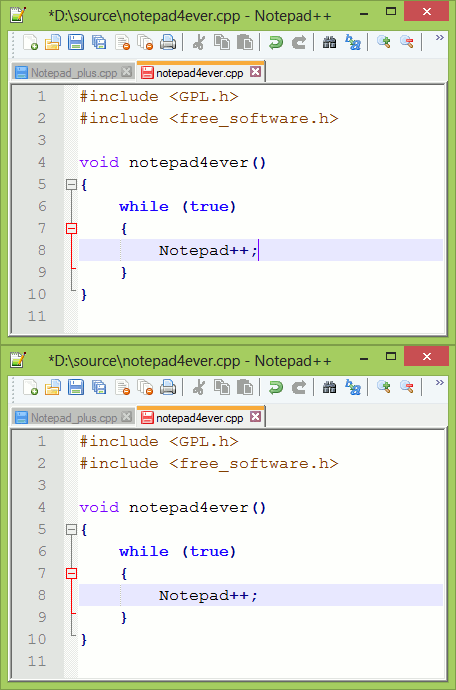
Programmer ေတြနဲ႔ Developer ေတြ အသံုးျပဳၾကတဲ့ Notepad ++ ျဖစ္ပါတယ္။ version 6.3 ေတြ႕ရွိလုိ႔
ေ၀မွ်ေပးလုိက္ပါတယ္ဗ်ာ။ လုိအပ္သူ၊ မရွိေသးသူမ်ား ေဒါင္းယူၾကပါ။


Notepad ++ ေဒါင္းရန္

Ubuntu Install နည္း စာအုပ္နဲ႔ Linux OS အေၾကာင္းစာအုပ္

Ubuntu Install နည္း စာအုပ္နဲ႔ Linux OS အေၾကာင္းစာအုပ္

No comments
By Kaung Htet Htun

Ubuntu Install နည္း စာအုပ္ နဲ႔ Linux OS အေၾကာင္း ျမန္မာလုိ စာအုပ္ေတြ ျဖစ္ပါတယ္။ ေလ့လာလုိသူ
မ်ား  အဆင္ေျပစြာေဒါင္းႏုိင္ရန္ လင့္ခ္သံုးခု ေပးထားပါတယ္။ အဆင္မေျပဘူးဆုိရင္ ေျပာျပေပးခဲ့ၾကပါ။

 Ubuntu စာအုပ္ေဒါင္းရန္ 
>> Download << Mediafire Link1
>> Download << Mediafire Link2
>> Download << 4Shared 

Linux OS အေၾကာင္းစာအုပ္ ေဒါင္းရန္
>> Download << Mediafire Link1
>> Download << Mediafire Link2

အဆင္ေျပၾကပါေစဗ်ာ။

Eclipse ကုိေဒါင္းၿပီး Install ၾကမယ္

Eclipse ကုိေဒါင္းၿပီး Install ၾကမယ္

No comments
By Kaung Htet Htun

ဒီေန႔ေတာ့ Java Programming စတင္ဖုိ႔ လုိအပ္တဲ့ ေဆာ့၀ဲတစ္ခုျဖစ္တဲ့ Eclipse ကုိ ေဒါင္းၿပီး စက္မွာ Install ၾကရေအာင္။
Eclipse ေဒါင္းဖုိ႔ရန္  >>> ဒီေနရာကုိ <<< သြားပါ။ ေအာက္ပါပံုအတုိင္း 32bit အတြက္ ေဒါင္းရန္ နဲ႔
64 bit အတြက္ ေဒါင္းရန္ ဆုိၿပီး ႏွစ္မ်ိဳးေတြ႕ရပါလိမ့္မယ္။ ကုိယ့္ကြန္ပ်ဴတာနဲ႔ ကုိက္မယ့္ ေနရာကုိ ေရြးခ်ယ္
ၿပီး ကလစ္ပါ။
ကၽြန္ေတာ္ကေတာ့ 32bit အတြက္ကုိ ႏွိပ္လုိက္ပါတယ္။ ေအာက္ပါအတုိင္း ပံုေပၚပါမယ္။
ျမႇားေလးကုိ ႏွိပ္လုိက္ပါ။

click here ကုိႏွိပ္ၿပီးေတာ့ ေဒါင္းႏုိင္ပါၿပီခင္ဗ်ာ ... ။ ဖုိင္ဆုိဒ္ကေတာ့ 229 MB ရွိပါတယ္။ ရလာတဲ့ zip ဖုိင္
ကုိ တစ္ေနရာရာမွာ ေျဖလုိက္ၿပီးေတာ့ .. Install လုိက္ပါ။ Install တာကေတာ့ ေျပာစရာသိပ္မလုိတာ
မုိ႔လုိ႔ မေျပာေတာ့ပါဘူး။ တစ္ခုေျပာလုိတာက Eclipse ဟာ Powerful ျဖစ္တဲ့ အတြက္ေၾကာင့္ ကြန္ပ်ဴတာ
ရဲ႕ System Resource ကုိ အလြန္သံုးလုိ႔ Eclipse ကုိ အသံုးျပဳရတာ ေႏွးလာတယ္လုိ႔ ထင္ရင္ ပိတ္ၿပီး
တစ္ေခါက္ျပန္ဖြင့္သင့္ပါတယ္။ တကယ္လုိ႔ ျဖစ္ႏုိင္ရင္ ကြန္ပ်ဴတာကုိပါ restart ခ်သင့္ပါတယ္။


 Eclipse ဟာ Android app ေရးတဲ့ အပုိင္းေတြမွာလည္း အဓိက အသံုးခ် software ျဖစ္ၿပီး Java ကုိ ေလ့လာလုိ႔ အသင့္ေတာ္ဆံုး ေဆာ့၀ဲ တစ္ခုျဖစ္ပါတယ္။


Java ကုိ စတင္ Install ျပဳလုပ္ျခင္း

Java ကုိ စတင္ Install ျပဳလုပ္ျခင္း

1 comment
By Kaung Htet Htun

Android APK ေတြကုိ ျမန္မာမႈျပဳဖုိ႔ အတြက္ Java ကုိ လုိအပ္ပါတယ္။ ၿပီးေတာ့ Java Programming ကုိ
ေလ့လာၾကဖုိ႔ အတြက္လည္း အဓိကအေနနဲ႔ လုိအပ္ပါတယ္။ 
Java ကုိ Install ျပဳလုပ္ျခင္း မစတင္မွီ Java ကုိအရင္ေဒါင္းၾကရေအာင္။ 
အရင္ဦးဆံုး     >>>ဒီလင့္ခ္ <<< ကုိ သြားလုိက္ ပါ ။

 ေအာက္ပါပံုအတုိင္း အနီေရာင္ျမႇားျပထားတဲ့ အကြက္မွာ License Agreement အတြက္
အမွတ္ျခစ္ေပးလုိက္ပါ။ ၿပီးသြားရင္ေတာ့ အစိမ္းေရာင္ အကြက္ထဲမွာ Java ေဒါင္းရန္ အတြက္ ကုိယ့္
ကြန္ပ်ဴတာနဲ႔ ကုိက္ညီမယ့္ Link ကုိ ႏွိပ္ၿပီး ေဒါင္းယူလုိ္က္ပါ။ ဥပမာ - ကုိယ့္ ကြန္ပ်ဴတာက 32 bit ဆုိရင္
 Windows x86 ၊ 88.98 MB  ေဘးက Link မွာ ေဒါင္းယူၿပီး၊ 64 bit operating system ဆုိရင္ေတာ့
Windows x64 ၊ 90.57 MB  ေဘးက Link မွာ ေဒါင္းယူႏုိင္ပါတယ္။
Install လုပ္နည္းကုိေတာ့ အေသးစိတ္မေျပာေတာ့ပါဘူး၊ ေဒါင္းယူလုိ႔ရရွိလာတဲ့ဖုိင္ကုိ Double Click ႏွိပ္
ၿပီးေတာ့ Next မ်ားကုိ ဆက္ႏွိပ္သြားလုိ္က္ရင္ Install လုပ္ငန္းစဥ္ၿပီးဆံုးသြားမွာပါ။ အဲ့ဒိေနာက္မွာေတာ့
ကြန္ပ်ဴတာက ကုိယ္ Install လုိက္တဲ့ Java ကုိ သိမသိ စမ္းသပ္ၾကည့္ရမွာ ျဖစ္ပါတယ္။ Window key နဲ႔
R Key ကုိ တြဲႏွိပ္ၿပီးေတာ့ Run box ကုိေခၚယူလုိက္ပါ၊ ၿပီးရင္ cmd လုိ႔႐ုိက္ထည့္ၿပီး Enter ေခါက္လုိက္ပါ။
အဲ့ဒိေနာက္ Cmd ထဲမွာ Javac လို္႔႐ုိက္ၿပီး Enter ေခါက္လို္က္ပါ။ Javac ဆုိတာကေတာ့ Java compile
ျဖစ္ပါတယ္။ ေအာက္ပါပံုအတုိင္း ေပၚလာပါလိမ့္မယ္။
'javac' is not recognized as an internal or external command. လို႔ေပၚလာတာျဖစ္ပါတယ္။ ကြန္ပ်ဴ
တာက java ကုိ မသိေသးပါဘူး။ အဲ့ဒိအတြက္ Path  လမ္းေၾကာင္းေပးရပါမယ္။ My computer ရဲ႕ C:\
ထဲကို သြားၿပီး Program Files ထဲက Java ဖုိဒါကုိ သြားလုိက္ပါ။ ၿပီးရင္ jdk ဖုိင္ (အေနာက္က ဗားရွင္း နံပါတ္ေတြကေတာ့ ကြဲခ်င္ကြဲပါလိမ့္မယ္) ကုိ ဖြင့္လုိက္ပါ။

                                
  အေပၚဆံုးက bin ဆုိတဲ့ ဖုိဒါကုိ ထပ္၀င္ပါ။

၀င္ၿပီးသြားရင္ အေပၚဆံုးက Application တစ္ခု (ဘယ္Application ကုိမဆုိရပါတယ္။ လြယ္သြားေအာင္
လုိ္႔ပါ) အေပၚ ကုိ ေထာက္ၿပီး Right Click ႏွိပ္ကာ Properties ကုိ၀င္ပါ။


          Location ေဘးမွာရွိတဲ့ Path လမ္းေၾကာင္း တစ္ခုလံုးကုိ Select မွတ္ၿပီး ေကာ္ပီ ကူးပါ။

ေနာက္တစ္ဆင့္ကေတာ့ Start button ကေန Computer ကုိ Right Click ႏွိပ္ၿပီး Properties ကုိ၀င္ပါ။

Advanced System Settings ကုိကလစ္လုိက္ပါက System Properties ေပၚလာပါလိမ့္မယ္။ အဲ့ဒိ ထဲက
Advanced Tab ကုိ သြားပါ။ ေအာက္နားက Environment Variables ကုိ ၀င္ပါ။

Environment Variables dialog box က်လာရင္ေတာ့ အေပၚက New  ဆုိတာေလးကုိ ႏွိပ္ပါ။ ၿပီးရင္
အေပၚက Variable name မွာ Path လုိ႔႐ိုက္ထည့္ၿပီး၊ ေအာက္က Variable value မွာေတာ့ ခုနက Select မွတ္ၿပီး ေကာ္ပီကူးလာတဲ့ Java ရဲ႕ Path လမ္းေၾကာင္းေလးကုိ Ctrl+V နဲ႔ Paste ထည့္လုိ္က္ပါ။အားလံုး
ၿပီးရင္ေတာ့ Ok, Ok, ေပါ့ဗ်ာ....။

ဒါဆုိရင္ Cmd ထဲကုိ ထပ္၀င္ၿပီး Java ကုိ သိမသိ စမ္းသပ္ၾကည့္ရေအာင္။ Window key + R key နဲ႔ Cmd ကုိ ဖြင့္ပါ။ Cmd ပြင့္ရင္ အထက္တုန္းက စမ္းသပ္တဲ့ အတုိင္း Javac လုိ႔ ႐ုိက္ၿပီး Enter ေခါက္ပါ။
ဒါဆုိရင္ေတာ့ ေအာက္ပါပံုအတုိ္င္း Java ကုိ ကြန္ပ်ဴတာက သိသြားပါၿပီဗ်ာ....။

ေနာက္ပိုင္းမွာ Java သင္ခန္းစာ ေတြကုိ ဒီ ဘေလာ့မွာ တင္ႏုိင္ဖုိ႔ ႀကိဳးစားပါဦးမယ္...။ ေက်းဇူး... ပါ... ။

ေဒါင္းနည္းမသိပါကအရင္ဖတ္ပါ

Download Link ကုိႏွိပ္ၿပီးလွ်င္ 5စကၠန္႔ေစာင့္ပါ၊ ၿပီးလွ်င္ ညာဘက္အေပၚေဒါင့္မွ Skip ကုိႏွိပ္ေပးမွသာ Download Page သုိ႔ ေရာက္႐ွိမည္ျဖစ္သည္။

Proudly Powered by Blogger.